-
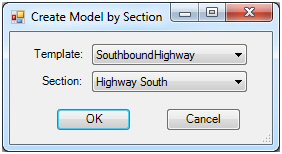
Create a new project with the Create tool. Select a template and a section.
-
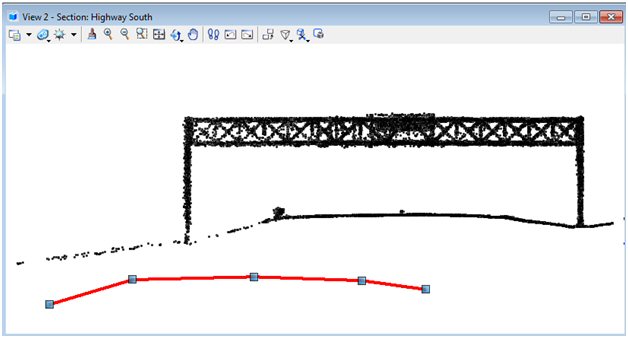
Use the Append tool to add a template to the project. The template will be placed in the section view
-
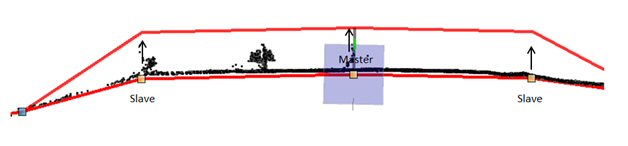
Move the section into placeon the point cloud. Adjust any vertices as required. When adjusting the master vertex, the slave vertices will follow.
-
When template matches point cloud, reset to continue
-
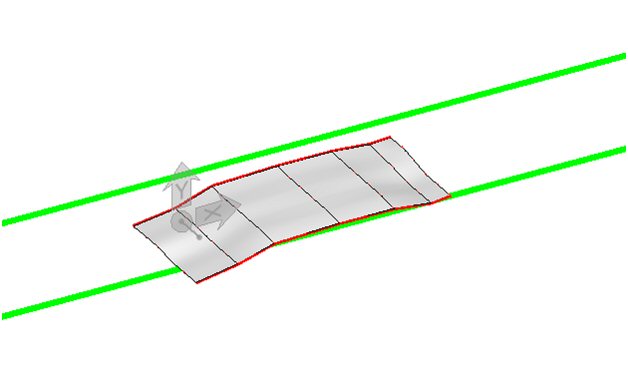
Section will automatically move forward by the distance specified in Forward step. Continue adding template copies. Preview the results with the Preview Loft tool.
-
When all templates are placed for the area being modeled, select Generate.
The defined graphic elements will be created and the project removed.